


The Ultimate Guide to Using a PDF to JPG Converter: Everything You Need to Know
In the modern digital landscape, the way we handle, share, and present information is constantly evolving. Documents serve as the backbone of business, education, and creative endeavors. However, formatting issues and compatibility barriers can often bring productivity to a grinding halt. Among the myriad of file formats, the Portable Document Format (PDF) and the Joint Photographic Experts Group format (JPG/JPEG) stand as two of the most universally recognized digital standards in the world.
While PDFs are magnificent for preserving complex, multi-page document layouts with crisp vector text, they are inherently rigid. They are difficult to embed on web pages, impossible to post directly to visual social media networks, and cumbersome to insert into video editing timelines. This is precisely where a highly optimized PDF to JPG Converter becomes an absolute necessity. Transforming a static, inflexible document into a versatile, universally accepted image format opens up a world of digital possibilities.
This comprehensive, in-depth guide will explore the history of these formats, define exactly what a PDF to JPG Converter is, outline the specific benefits of utilizing our client-side web tool, and provide expert tips on optimizing your document workflow.
Understanding the Formats: PDF vs. JPG
Before diving into the conversion process, it is essential to understand why these two formats exist and what makes them fundamentally different. This understanding highlights exactly why converting between them is so frequently required.
The Portable Document Format (PDF)
Created by Adobe Systems in 1992, the PDF was invented with a specific, ambitious goal: the "Paperless Office." Before the PDF, sending a document from a Windows PC to a Mac—or from one word processor to another—often resulted in broken formatting, missing fonts, and mangled layouts. A PDF acts as a digital piece of paper. It locks in the text (vector graphics), embedded fonts, and layout coordinates so that the document looks identical whether it is viewed on a modern smartphone or a 20-year-old desktop computer. However, because it operates as a secure container for vectors and text data, it acts more like software than a simple picture.
The Joint Photographic Experts Group (JPG)
In contrast, the JPG format was standardized in the early 1990s as a method to compress digital photography. A JPG is a "raster graphic." It does not contain mathematical coordinates for fonts or shapes; instead, it consists of a grid of thousands (or millions) of colored pixels. The JPG algorithm utilizes "lossy" compression, effectively shrinking file sizes drastically while maintaining a visual quality acceptable to the human eye. Because it is just a grid of pixels, literally every digital screen, web browser, operating system, and social media platform in existence can instantly read and display a JPG file without any specialized software.
What is a PDF to JPG Converter?
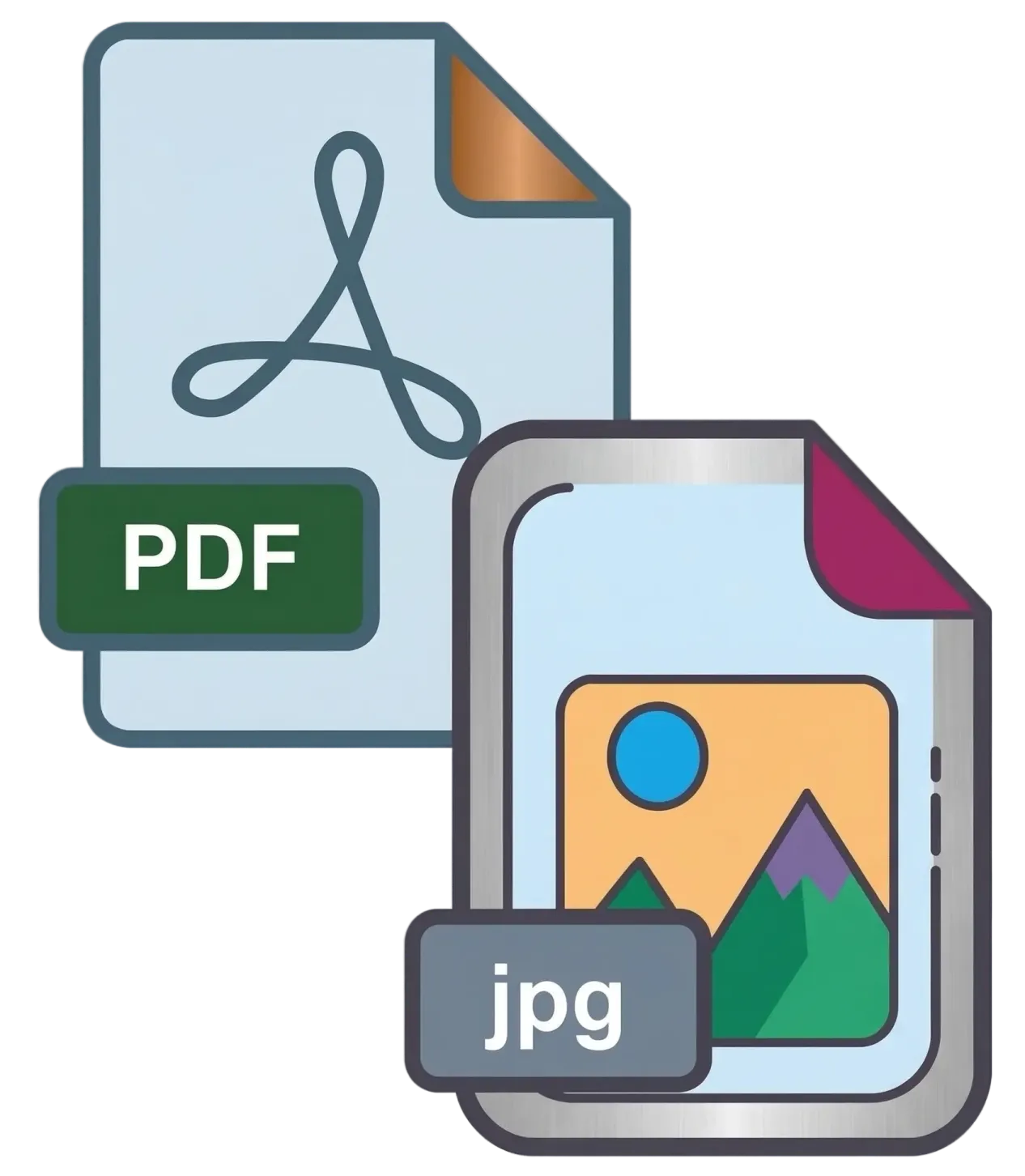
A PDF to JPG Converter is an advanced utility tool that bridges the gap between these two vastly different formats. It performs a process known as "rasterization." The software opens the complex PDF container, reads the mathematical instructions for where the text and shapes should be, and then digitally "draws" or renders that information onto a flat, pixel-based canvas. Finally, it takes a snapshot of that canvas and saves it as a compressed JPG image file.
If you feed a 10-page PDF into a PDF to JPG Converter, the tool will analyze each page individually and output ten separate, high-quality JPG image files, ready to be used as standard photos.
Top Reasons to Use a PDF to JPG Converter
Why go through the trouble of changing your document's format? The use cases span across virtually every profession and personal digital interaction. Here are the most prominent reasons you need a PDF to JPG Converter in your toolkit:
1. Flawless Social Media Integration
If you run a business, a blog, or a creative agency, you likely design promotional flyers, infographics, menus, or announcements. Design software often exports these as PDFs to preserve print quality. However, networks like Instagram, Facebook, Pinterest, and LinkedIn's image feeds do not accept PDF uploads. Using a PDF to JPG Converter instantly transforms your promotional document into a post-ready image, allowing you to reach your audience without requiring them to download external files.
2. Enhanced Web Design and User Experience (UX)
Web developers know that forcing a website visitor to download a PDF just to read a simple menu, price list, or event schedule is bad practice. It interrupts the browsing experience, especially on mobile devices. By converting the PDF to a JPG, a webmaster can embed the image directly into the HTML of the page. The user sees the information instantly as they scroll, drastically improving engagement and reducing bounce rates.
3. Effortless Presentation Building
Building slide decks in Microsoft PowerPoint, Apple Keynote, or Google Slides is a visual process. If an analyst needs to include a specific chart that is locked inside a 50-page PDF report, importing the PDF directly is often messy and unsupported. A PDF to JPG Converter isolates that specific page and turns it into a standard photo that can be easily dragged, dropped, resized, and animated on the presentation slide.
4. Bypassing Email Attachment Limits
High-quality, multi-page PDFs can easily exceed the 25MB attachment limit imposed by email providers like Gmail and Outlook. If you only need a client to review one specific page (like a signature page or a blueprint draft), sending the entire heavy document is inefficient. Extracting that single page via a PDF to JPG Converter creates a lightweight file that sends instantly and opens right inside the recipient's email client.
5. Creating Video Content
With the explosion of YouTube and TikTok, video editors frequently need to display documents on screen—such as a highlighted news article, a historical document, or a legal snippet. Video editing timelines (like Premiere Pro or Final Cut) do not import PDF formats. Editors rely on PDF to JPG Converters to generate the visual assets they need to pan, zoom, and display within their videos.
The Technical Magic: How Our Client-Side Converter Works
When you search for a "PDF to JPG Converter" online, you are met with millions of results. However, 99% of those traditional tools use an outdated, server-side model. They force you to upload your file to their remote servers, wait in a queue, process the file remotely, and then give you a download link.
Our tool represents the next generation of web utilities. We utilize cutting-edge Client-Side Processing. Here is exactly what happens when you use our tool, and why it is superior:
- Local File Access: When you drag and drop your file into the designated zone, HTML5 technology reads the file directly into your browser's local memory (RAM).
- PDF.js Engine: We utilize PDF.js, an incredibly powerful, open-source library originally developed by Mozilla. This engine interprets the complex PDF code entirely within the confines of your browser.
- Canvas Rasterization: The engine creates a hidden HTML element for each page. It precisely calculates the layout and draws the text, vectors, and embedded images onto this blank canvas. For JPG conversion specifically, it ensures a solid white background is applied (since JPGs do not support transparency).
- Instant JPG Generation: Once the page is rendered on the canvas, the browser instantly converts those pixels into a highly optimized JPG data file, presenting it directly on your screen for immediate download.
Security First: The Ultimate Privacy Advantage
The most critical advantage of our Client-Side PDF to JPG Converter is Security and Privacy.
Think about the documents you might need to convert: tax returns containing your Social Security Number, highly confidential corporate merger presentations, private medical records, or proprietary architectural blueprints. If you use a standard online converter, you are uploading those sensitive files to an unknown, third-party server located somewhere in the world. You have zero control over who sees that file, whether it is permanently deleted, or if the server suffers a massive data breach.
Because our tool runs 100% locally in your web browser, your files never leave your computer. They are never uploaded to the internet. They are never sent to a server. In fact, once the web page loads, you could disconnect your computer from the Wi-Fi, and the PDF to JPG Converter would still work flawlessly! This offline capability ensures complete peace of mind, making it the safest option available on the web today for handling sensitive data.
Understanding DPI and Optimizing Image Quality
A common frustration with poor-quality converters is that the resulting JPGs end up blurry, pixelated, or illegible. Because we are turning infinitely scalable vector text into fixed pixels, the "resolution" at which we draw the image matters immensely. This is controlled by DPI (Dots Per Inch) or scaling factors.
To ensure you get the absolute best results for your specific use case, our PDF to JPG Converter offers dynamic quality controls:
- Standard Quality (150 DPI): This setting is perfect for digital sharing. It creates a JPG that looks great on computer monitors and smartphone screens while applying aggressive compression to keep the file size very small. It is ideal for email attachments and web embeds.
- High Quality (200 DPI): This is the golden mean and our default recommendation. At 200 DPI, the text becomes incredibly crisp, and charts/graphs retain their fine details. This is the optimal setting for presentation slides and social media uploads where clarity is paramount.
- Maximum Quality (300 DPI): In the graphic design and print industry, 300 DPI is the holy grail of resolution. If you are converting a PDF to a JPG with the intention of physically printing that image later, or if the document contains microscopic details (like CAD drawings or maps), use this setting. The resulting file size will be larger, but the visual fidelity will be flawless.
Troubleshooting Common Conversion Issues
Our PDF to JPG Converter is built to handle the vast majority of files seamlessly, but certain edge cases can arise. Here are some pro tips for ensuring smooth conversions:
Dealing with Massive Documents: If you attempt to process a 600-page encyclopedia PDF on "Maximum Quality," your browser may freeze or crash due to a lack of local memory (RAM). Rendering hundreds of massive canvases takes significant computational power. If you have an enormous file, consider using a PDF splitter first to divide it into 20-page chunks, or lower the quality setting to "Standard."
Password-Protected Files: If the author of the PDF encrypted the file with a password to prevent viewing or editing, our browser-based engine will be locked out. You will need to remove the password protection using an unlocking utility before converting the file to JPG.
Missing Fonts: Occasionally, a poorly formatted PDF will not have its custom fonts "embedded" inside the file. While our engine has excellent fallback mechanisms to use standard system fonts, an exotic missing font might look slightly different in the final JPG than it did on the author's machine.
Conclusion
Navigating the digital workspace shouldn't involve wrestling with incompatible file formats. The ability to swiftly, securely, and freely convert your rigid documents into versatile images is a massive productivity booster. With our professional-grade, browser-based PDF to JPG Converter, you hold a powerful tool that respects your privacy while delivering top-tier visual results.
Whether you need to extract an infographic for your next viral tweet, pull a chart for a vital quarterly presentation, or simply compress a heavy document for a quick email, this tool handles the heavy lifting in seconds. Save this page to your bookmarks, integrate it into your daily digital routine, and experience the freedom of seamless file conversion today!