





The Ultimate Guide to Crop Image Like a Pro
In the digital era, visual content reigns supreme. Whether you are building a website, crafting a social media campaign, or designing a printable brochure, the quality and composition of your visuals dictate how your audience engages with your brand. To crop image means to remove unwanted outer areas from a photographic or illustrated image. The process consists of the removal of some of the peripheral areas of an image to remove extraneous trash from the picture, to improve its framing, to change the aspect ratio, or to accentuate or isolate the subject matter from its background.
When you crop an image, you are essentially redefining its narrative. A wide landscape shot tells a story of vastness and environment. But if you take that same photo and crop the image to focus solely on a lonely cabin in the distance, the story suddenly shifts to isolation, intimacy, and focus. This narrative control is why learning how to properly crop an image is considered one of the most fundamental yet powerful tools in digital photography and graphic design.
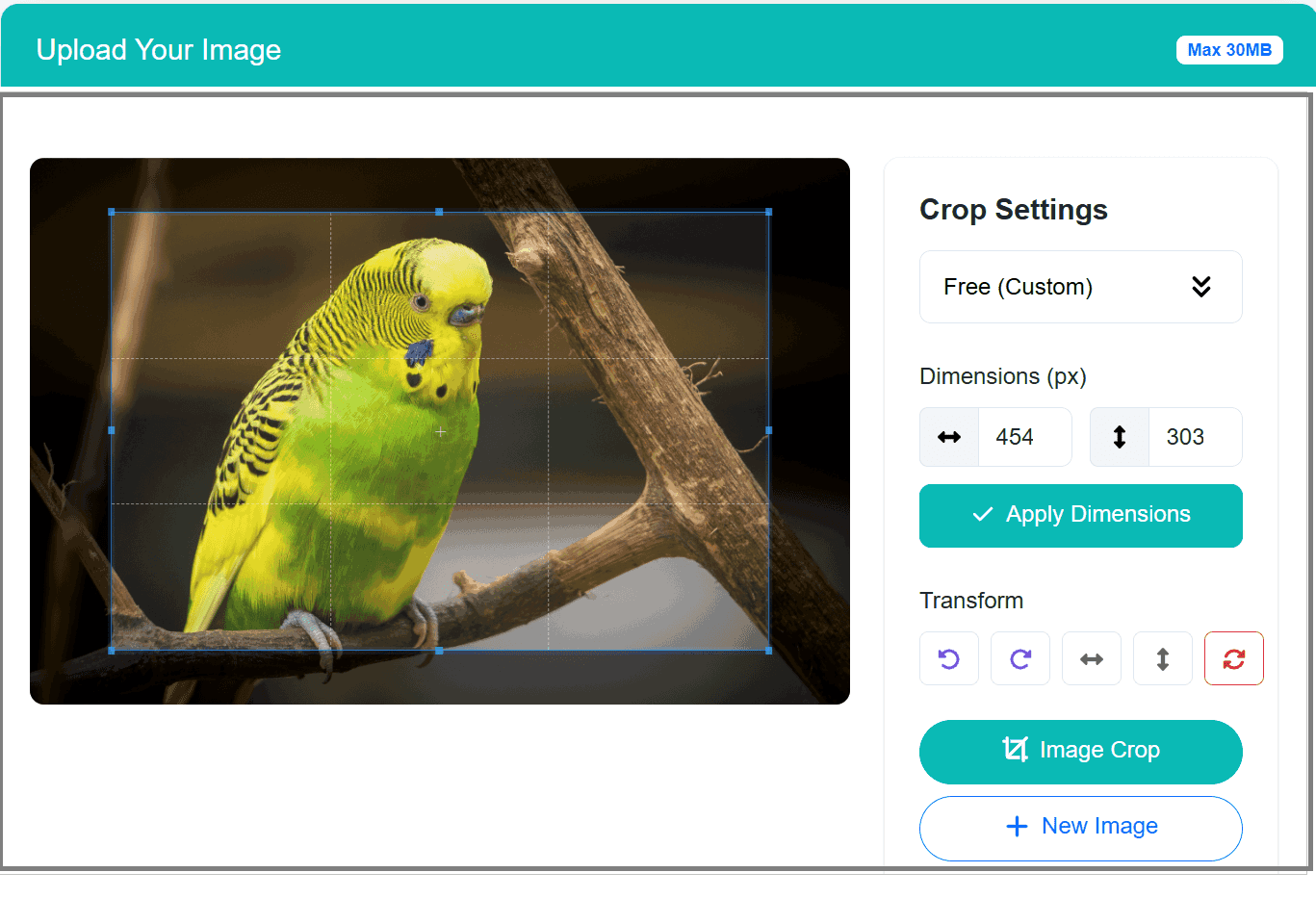
PngReducer's sophisticated, responsive tool above allows you to crop image files instantly right in your browser. With support for JPG, PNG, and WebP formats, you no longer need heavy, expensive desktop software to achieve professional composition. You can also resize your images or compress them using our other free tools.
Core Principles: How to Crop Image for Better Composition
Cropping is not just about making a picture smaller to fit a specific dimension; it is an art form driven by established compositional rules. When you decide to crop image boundaries, keep the following timeless principles in mind:
1. The Rule of Thirds
The Rule of Thirds is perhaps the most famous compositional guideline in visual arts. Imagine dividing your image into nine equal segments by two vertical and two horizontal lines. When you crop image dimensions, aim to place the most important elements of your scene along these lines, or at the points where they intersect. Most modern crop tools — including ours — provide a grid overlay to help you align your subjects perfectly according to the Rule of Thirds. This technique creates more tension, energy, and interest in the composition than simply centering the subject.
2. Removing Distractions
Often, a photograph captures more than just the intended subject. A beautiful portrait might be ruined by a bright, distracting streetlamp in the corner of the frame, or a stray hand from a passerby. The most practical reason to crop image edges is to eliminate these photobombs and visual clutter. By cropping out the noise, you force the viewer's eye exactly where you want it to go.
3. Leaving Room to Breathe (Lead Room)
If your subject is looking in a specific direction, or if an object is moving, it is visually pleasing to leave space in front of them. This is known as "lead room" or "looking room." When you crop image borders tightly around a subject's face while they are looking off-camera, it can create a claustrophobic feeling. Adjust your crop box to give the subject space to look into, balancing the visual weight of the frame.
4. Avoiding Cropping at the Joints
When you crop image files containing people, a golden rule of portrait photography is to avoid amputating limbs at the joints. Cropping precisely at the neck, elbows, knees, or ankles looks awkward and unnatural. Instead, crop mid-torso, mid-thigh, or mid-shin to maintain the psychological continuity of the human form outside the frame.
Why You Must Crop Image for Social Media Success
Every social media platform has its own unique layout, aspect ratios, and audience behaviors. What works beautifully as a 16:9 cinematic shot on YouTube will be severely compromised if posted as-is on Instagram. To maximize engagement, you must crop image assets specifically tailored to the destination platform.
- Instagram: The platform favors the 1:1 square ratio for standard grid posts, or the 4:5 vertical ratio (1080 x 1350 pixels) to take up maximum screen real estate on mobile devices. When you crop image files for Stories or Reels, the required ratio shifts dramatically to 9:16 (1080 x 1920 pixels).
- Facebook: While flexible, Facebook link previews generally look best when cropped to a 1.91:1 ratio (1200 x 630 pixels). Event cover photos and group banners all require precise cropping to prevent vital text or faces from being obscured by UI elements.
- Twitter (X): Twitter feeds tend to compress tall images. To ensure your picture looks great in the feed without requiring the user to tap to expand, crop image dimensions to a 16:9 ratio.
- LinkedIn: Professionalism requires perfection. Profile pictures must be cropped tightly as perfect squares (1:1), while background banners require a very wide 4:1 panoramic crop.
By utilizing the pre-set aspect ratio buttons in our web tool above (1:1, 9:16, 3:2), you can perfectly crop image files for these platforms in seconds. Once cropped, you may also want to compress your JPG or compress your PNG to minimize file size before uploading.
SEO and Web Performance: Why Cropping Matters
For website owners, bloggers, and e-commerce managers, the decision to crop image files goes far beyond aesthetics; it directly impacts Search Engine Optimization (SEO) and website loading speeds. Search engines like Google prioritize fast-loading, mobile-friendly websites.
When you upload a massive 20-megapixel raw photo straight from a digital camera onto your website, it forces the user's browser to download a huge file, only to shrink it down visually via CSS. This creates massive delays in your Largest Contentful Paint (LCP) metric. By deciding to crop image dimensions to the exact pixel size required by your web layout, you drastically reduce the file size. For even smaller files, combine cropping with our WebP compression tool.
Additionally, cropping allows you to highlight the contextual relevance of an image. If your article is about "Vintage Coffee Mugs," but your photo shows a whole kitchen with a mug in the corner, search engines might misinterpret the image. When you crop image boundaries closely around the mug, you reinforce the semantic relevance of the visual to the surrounding text, strengthening your overall SEO profile.
The Evolution of Tools to Crop Image
Historically, to crop image meant physically taking a pair of scissors to a printed photograph or using an enlarger in a darkroom to expose only a portion of a negative onto photographic paper. With the advent of digital photography, desktop software like Adobe Photoshop revolutionized the process. However, these tools are often expensive, require significant computing power, and have steep learning curves.
Today, the paradigm has shifted towards browser-based solutions. Web-based applications allow you to crop image files on any device — be it a high-end desktop PC, a tablet, or a budget smartphone. The tool provided on this page by PngReducer utilizes advanced JavaScript APIs to bring desktop-class photo manipulation directly to your browser. Because the processing is done client-side, your privacy is maintained; the files are not uploaded to a distant server, ensuring speed and security.
Common Mistakes to Avoid When You Crop Image
1. Over-Cropping (Pixelation): When you crop too tightly into a low-resolution image, you stretch a small number of pixels over a large area, resulting in a blurry, blocky, pixelated mess. Always start with the highest resolution image possible.
2. Losing Context: While removing distractions is good, removing the environment entirely can sometimes rob a photo of its story. Balance focus with context.
3. Inconsistent Aspect Ratios on E-commerce: If you run an online store, nothing looks less professional than a product grid where every image has a different height and width. When you crop image assets for product catalogs, always use a locked aspect ratio and ensure the product occupies roughly the same percentage of the frame in every shot. You can then convert your product images to WebP for faster page loads.
Step-by-Step Guide to Using Our Free Crop Image Tool
We designed this web application to be as user-friendly as possible, requiring zero technical knowledge. Here is how to achieve the perfect crop:
- Upload Your Files: Locate your images on your computer. You can drag and drop files directly into the dashed upload zone, or click the "Select File" button. Remember, the tool supports JPG, PNG, GIF, and WebP.
- Select the Image: Once uploaded, your image will appear in the main workspace.
- Set Your Ratio: Above the image, select your desired aspect ratio. Click "Free" if you want to draw a custom box, or choose predefined ratios like 9:16 or 1:1 for social media perfection.
- Adjust and Frame: Click and drag the corners of the crop box to resize it. Click inside the box and drag to move it around the image until you achieve the perfect framing using the grid lines.
- Fine-Tune: Use the rotation buttons to fix crooked horizons, or the flip buttons to mirror the image if the composition demands it.
- Download: Once satisfied, hit the "Image Crop" button. The tool will instantly process your crop and save the new, optimized image to your device, ready to be shared with the world.
Advanced Considerations: Color Profiles and Formats
While learning to crop image visually is step one, understanding what happens under the hood is step two. When manipulating images for the web, JPEG is generally preferred for photographs due to its excellent compression. PNG is preferred for images requiring transparency or crisp text. WebP offers the best of both worlds for modern browsers. When you crop and save using our tool, the native browser canvas API handles the pixel rendering, ensuring a clean output.
Always ensure your final cropped images are in the sRGB color space if they are destined for the web, as this is the universal standard for monitors and mobile screens. Cropping an Adobe RGB or ProPhoto RGB image without converting it first can lead to dull, washed-out colors on your website.
Conclusion
To crop image files correctly is to take control of your visual storytelling. It is the easiest, fastest, and most profound way to elevate an average photograph into a striking piece of visual content. By applying the Rule of Thirds, optimizing for specific platforms, and avoiding common resolution pitfalls, you ensure your images captivate your audience.
Bookmark this page and utilize PngReducer's responsive, secure, and lightning-fast crop image tool whenever you need to prepare visuals for your website, social media channels, or print projects. With an intuitive interface and full privacy protection, perfectly composed images are just a few clicks away.