Convert Jpg To Png
Convert JPG To PNG file while preserving quality. Our privacy-focused tool works right in your browser—no uploads, no watermarks.
Drag & Drop Your JPG Files Here
or click anywhere to browse
Max 10 files, 30MB each
Jpg To Png converter Online For Free
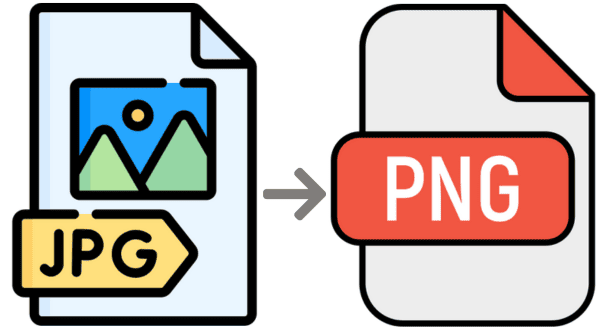
JPG to PNG refers to the process of converting an image file from the JPG (or JPEG) format to the PNG format. Both are popular image file types. PNG can be saved in an interlaced format (progressive display) for faster previews.
PNG images can include transparent or semi-transparent pixels, which makes them great for web graphics like logos.
Jpg To Png Converter — Fast & Secure
Everything you need to convert your images quickly and securely.

Privacy Protected
Your images are processed in your browser and never uploaded to our servers. Your privacy is 100% guaranteed.
First Process
Our tool processes images directly in your browser for lightning-fast convert without waiting in queues.
Batch Processing
Upload and convert multiple JPG images at once. Save time by processing your entire image collection in one go.

File Transfer Encryption
All file transfers are encrypted for maximum security, ensuring your images remain private and protected.

It's Free For All
No hidden costs, no watermarks, no registration required. Our jpg to png converter is completely free to use for everyone.

Mobile Friendly
Optimized for all devices. Convert images on your phone, tablet, or desktop with the same great experience.
The Ultimate Guide to Convert JPG to PNG: Everything You Need to Know
In the expansive and ever-evolving digital world of web design, digital photography, graphic art, and everyday content creation, image formats play a foundational role. Among the dozens of formats available, two reign supreme in popularity: JPG (or JPEG) and PNG. If you have ever worked with images on a computer, you have undoubtedly encountered both. While both formats serve the purpose of displaying visual media, they are built entirely differently under the hood. There are numerous scenarios where you might need to convert JPG to PNG to maintain image quality, add transparency, or prepare graphics for a professional web layout.
This comprehensive, 2000-word guide is designed to walk you through everything you need to know about these two titan image formats. We will explore the technical differences between them, the precise reasons why you would want to convert JPG to PNG, how the conversion process works mathematically and practically, and the best use cases for each format. Whether you are a seasoned web developer looking to optimize site loading speeds, a graphic designer dealing with brand logos, or an everyday user trying to create a transparent meme, understanding how to convert JPG to PNG is an essential digital skill.
Understanding the Basics: What is a JPG?
Before diving into the reasons why you should convert JPG to PNG, it is crucial to understand what a JPG actually is. JPG stands for Joint Photographic Experts Group, which is the name of the committee that created the standard in the early 1990s. The JPG format was revolutionary because it introduced a method of compressing digital images to make their file sizes significantly smaller, allowing them to be easily stored on the limited hard drives of the era and transmitted over slow dial-up internet connections.
JPG relies on what is known in computer science as "lossy" compression. This means that when an image is saved as a JPG, the algorithm actively discards "unnecessary" visual data to reduce the overall file size. It does this by analyzing blocks of pixels and grouping similar colors together. To the human eye, a mildly compressed JPG looks nearly identical to the original uncompressed image, but the file size can be reduced by up to 90%. This makes JPG the undisputed king of digital photography. When you take a picture on your smartphone or a DSLR camera, the default output is usually a JPG because it beautifully captures the complex color gradients of real-world scenes while keeping the file size manageable.
However, lossy compression is a double-edged sword. Every time you open, edit, and resave a JPG file, the image loses a little more data—a phenomenon known as "generation loss." Furthermore, JPGs fundamentally do not support transparency. Every pixel in a JPG must have a color; if you try to erase a background, the JPG format will simply replace that empty space with solid white pixels. This limitation is one of the primary reasons users seek out a tool to convert JPG to PNG.
Understanding the Basics: What is a PNG?
On the other side of the digital spectrum, we have the PNG, which stands for Portable Network Graphics. Developed in the mid-1990s as an open-source alternative to the heavily patented GIF format, PNG was specifically designed for transferring images over the internet. Unlike JPG, PNG utilizes "lossless" compression. This means that when an image is compressed and saved as a PNG, absolutely no data is lost. You can open, edit, and save a PNG thousands of times, and the image quality will remain exactly as pristine as the day it was created.
Because PNG files retain all original image data, their file sizes are generally significantly larger than JPGs, especially when dealing with complex, multi-colored photographs. However, PNGs excel in areas where JPGs fail. Because they do not use block-based lossy compression, PNGs are incredibly sharp. They are perfect for images containing text, line art, blueprints, graphics with sharp transitions between colors, and logos.
Most importantly, the PNG format supports an "alpha channel." In digital imaging, an alpha channel represents the degree of transparency (or opacity) of a color. This allows PNG files to have fully transparent backgrounds, or even partial transparency (like a drop shadow that smoothly fades into whatever background it is placed over). If you are building a website and need to place a company logo over a colored banner or a photographic background, a PNG is absolutely essential.
Why Should You Convert JPG to PNG?
If JPG is so great for file size, why do millions of people search for ways to convert JPG to PNG every single day? The decision to switch formats usually boils down to three primary factors: the need for transparency, the need to preserve quality during editing, and the need for sharp, contrasting edges in web design.
1. The Need for Transparent Backgrounds
By far, the most common reason people use a tool to convert JPG to PNG is to achieve transparency. As mentioned earlier, JPGs cannot hold transparent pixels. If you have a round logo saved as a JPG, it will inherently have a square white (or solid color) box around it. If you try to upload that JPG to a website with a dark background, the white box will stick out like a sore thumb, ruining the aesthetic appeal of the site.
By converting the JPG to a PNG, you format the file so that it can interpret and hold transparent data. While simply converting the file does not magically erase the background (you still need image editing software or an AI background remover to do that), converting to PNG is the mandatory first step. Once the image is in PNG format, you can remove the background, and the empty space will remain truly transparent, allowing you to seamlessly integrate the image into presentations, videos, and websites.
2. Lossless Editing and Archiving
Graphic designers and photographers often convert JPG to PNG when they need to perform extensive edits on an image. Because JPG uses lossy compression, saving a JPG repeatedly will result in ugly "compression artifacts"—blocky, pixelated areas that ruin the clarity of the image. If a client sends a designer a JPG to work on, the designer's first move is often to convert JPG to PNG or a similar lossless format. By doing this, they freeze the current quality of the image. They can then apply filters, color corrections, and edits, saving the file continuously without fearing any further degradation in visual quality.
3. Sharp Text and High-Contrast Graphics
Have you ever taken a screenshot of a document or a spreadsheet, saved it as a JPG, and noticed that the text looks a bit fuzzy or has a weird "halo" effect around the letters? That is the JPG lossy compression struggling to handle high-contrast, sharp edges. JPG algorithms are designed to blend colors smoothly for photos, not to render the stark transition between black text and a white background.
If you have an infographic, a graph, a chart, or a text-heavy image that is currently in JPG format, it is highly recommended to convert JPG to PNG. The PNG's lossless compression handles solid colors and sharp lines flawlessly, ensuring that the text remains crisp, legible, and professional when viewed on high-resolution screens.
How Does Our Client-Side Convert JPG to PNG Tool Work?
The tool provided at the top of this page represents the modern standard of web applications. In the past, if you wanted to convert JPG to PNG, you had to upload your private images to a remote server. The server would process the file using backend software and then send the converted file back to you for download. This older method presented significant privacy risks, required massive bandwidth, and was frustratingly slow for users on weak connections.
Our tool changes the paradigm entirely by leveraging the power of HTML5 and modern JavaScript directly within your internet browser. Here is exactly what happens when you use our drag-and-drop tool to convert JPG to PNG:
- File Selection: When you drag and drop your JPG files (up to 10 at a time, up to 30MB each), your browser securely reads the file data into its local memory.
- Canvas Rendering: The JavaScript code takes your JPG image data and essentially "draws" it onto an invisible HTML5 Canvas element running in the background of the web page.
- Local Conversion: Once the image is drawn onto the canvas, the browser utilizes its native APIs to export that exact image data as a brand new "image/png" data blob.
- Instant Download: The tool then creates a secure, temporary URL pointing to this newly created PNG blob in your browser's memory, generating the "Download PNG" button for you instantly.
Because this entire process happens strictly within the confines of your device's browser (client-side), your images are never uploaded to our servers. This guarantees 100% privacy and security for your sensitive documents, personal photographs, and proprietary business graphics. It also means the conversion is lightning fast, limited only by the processing speed of your own computer or smartphone, rather than our server traffic.
Step-by-Step Guide: How to Convert JPG to PNG Using This Tool
We have designed the user interface to be as frictionless as possible. Even if you have no technical experience, you can convert JPG to PNG in seconds by following these simple steps:
Step 1: Locate your JPG files. Ensure the images you want to convert are saved on your device (computer, tablet, or smartphone). Remember that this tool allows you to process up to 10 files simultaneously, making it great for batch conversions.
Step 2: Drag and Drop. Simply click and drag your JPG files from your desktop or folder and drop them into the dashed box above that says "Drag & Drop your JPG files here". Alternatively, if you are on a mobile device, just tap the box to open your phone's photo gallery and select your images.
Step 3: Automatic Conversion. Once the files are selected, the tool immediately begins the conversion process. You don't even need to click a "start" button. The tool automatically checks to ensure the files are valid JPGs and under the 30MB size limit.
Step 4: Download your PNGs. Within milliseconds, a list of your processed files will appear below the drop zone. You will see the original file name, the new file size, and a green "Done" badge. Simply click the blue "Download PNG" button next to each file to save the perfectly converted PNG directly to your device.
Best Practices for Image Optimization on the Web
While knowing how to convert JPG to PNG is an incredibly useful skill, knowing when to use which format is what separates average web users from professional developers and digital marketers. Using the wrong image format can bloat a website's page size, significantly increasing load times, ruining the user experience, and negatively impacting Google Search Engine Optimization (SEO) rankings.
When to stick with JPG
You should almost always use JPGs for large, complex photographs where exact pixel-perfect fidelity is not strictly required. If you are uploading a photo gallery of a recent vacation, product photography for an e-commerce store (assuming they don't require transparent backgrounds), or large hero background images for a website, JPG is your best friend. The lossy compression will keep your webpage lightweight and fast. If you convert a massive photographic JPG to a PNG for no reason, you will needlessly inflate the file size, sometimes making it 5 to 10 times larger without any noticeable improvement to the naked eye.
When you MUST Convert JPG to PNG
Conversely, you must convert JPG to PNG (or start with a PNG) in the following scenarios:
- Logos and Brand Icons: Because these require crisp edges and often need to sit on various colored backgrounds without a white bounding box.
- Screenshots containing UI elements: PNG prevents the text and buttons within the screenshot from becoming blurry.
- Web Graphics and Illustrations: Digital art, flat design illustrations, and vector-style graphics exported to raster formats should be PNGs to preserve solid color blocks cleanly.
- Images with transparency: As stated, this is the most common reason. Drop shadows, cut-out subjects, and layered graphics require the alpha channel that only PNG provides.
Comparing Image Formats: JPG vs. PNG vs. WebP
As technology advances, new formats emerge. While the debate usually centers around whether to convert JPG to PNG, we must also acknowledge newer next-generation formats like WebP. Developed by Google, WebP aims to be a master-of-all-trades format. It supports both lossy compression (like JPG) and lossless compression (like PNG), and it supports transparency.
WebP files are generally 25-35% smaller than their equivalent JPGs or PNGs. Because of this, many modern websites are transitioning to WebP. However, JPG and PNG remain the universally dominant legacy formats. Every single piece of software, operating system, and legacy browser on earth fully supports JPG and PNG. Sometimes, downloading a WebP image can be frustrating because older desktop image viewers or specific desktop publishing software might not know how to open it. In these instances, users often find themselves needing to convert WebP back to JPG or PNG for compatibility.
Therefore, converting JPG to PNG remains a vital bridge for ensuring universal compatibility, especially when handing off design assets to printers, clients, or older software ecosystems.
Conclusion
Understanding image formats is a subtle but incredibly important aspect of modern digital literacy. While JPG will likely forever remain the king of everyday digital photography due to its highly efficient file sizes, PNG is the undisputed champion of quality, transparency, and sharp graphic design. Knowing exactly when to use each format allows you to create faster websites, sharper presentations, and more professional graphics.
Whether you are removing backgrounds for an online store, preserving the quality of an important scan, or simply preparing a logo for a client, the ability to quickly and securely convert JPG to PNG is an indispensable tool in your digital arsenal. Our free, secure, in-browser tool is designed to make this process as fast and frictionless as possible, without compromising your privacy or data security. Bookmark this page for the next time you encounter an image format dilemma!
Convert Images in 3 Simple Steps
Convert jpg to png file without sacrificing quality—drag, adjust, download.
Upload Images
Click the "Select Files" button or drag and drop your JPG images into the upload area. You can select multiple files at once for batch processing.
Adjust Settings
Our jpg to png converter processes images automatically without significantly affecting its visual quality, using advanced algorithms.
Convert & Download
When images upload is complete wait a few seconds. Once processing is complete, download your converted images individually or all at once.
Frequently Asked Questions
Find quick answers to common questions about our jpg to png converter
Will converting JPG to PNG improve the image quality?
No. This is a very common misconception. When you convert JPG to PNG, you are taking the existing, already-compressed visual data of the JPG and locking it into the lossless PNG format. The visual quality will remain exactly the same as the source JPG. You cannot magically retrieve the data that was lost when the original JPG was compressed. However, converting it to PNG prevents it from losing more quality if you plan to edit and resave it multiple times.
Why is my new PNG file much larger than my old JPG?
This is expected behavior. JPG uses aggressive compression algorithms to shrink files. When you convert JPG to PNG, the PNG format rewrites the image data using lossless algorithms, which are much less efficient at compressing complex color gradients found in photos. If you convert a photograph, expect the file size to multiply. This is why you should only convert when necessary (for transparency or editing).
Is it safe to use this online converter?
Absolutely. As detailed in the 'How It Works' section, our tool utilizes client-side JavaScript technology. This means the script runs locally on your machine. Your JPGs never leave your device, they are never uploaded to a remote server, and we do not store or see your images. It is 100% private and safe for sensitive documents.
Can I convert PNG back to JPG?
Yes, the process works both ways. If you have a massive PNG photograph taking up too much space on your hard drive, you can easily convert it back to a JPG to save space. Just remember that if your PNG had a transparent background, converting it to JPG will automatically fill that transparent space with a solid color (usually white).
Does this tool support batch conversions?
Yes! To save you time, our tool allows you to drag and drop up to 10 JPG files simultaneously. The script will rapidly process all of them one by one, providing you with individual download links for your new PNGs.