Increase Image Size in KB Online
(JPG, PNG, WebP)
Reach the minimum KB/MB size that upload portals ask for, or upscale photo dimensions up to 8x with high-quality browser smoothing. Free and private.
Drag & drop your images here
or tap to browse — up to 10 images at once
Pick your exact target file size. The tool adds invisible metadata padding so the file precisely reaches your requested KB/MB while keeping the original pixel dimensions.
Multiply pixel dimensions uniformly with high-quality smoothing.
Specify custom pixel dimensions. Lock the aspect ratio to keep proportions.
Files ready 0/10
How to Increase Image Size in KB, MB and Pixels Without Losing Quality
Most web tutorials focus on compression: shrink the file, speed up the page. But millions of people face the opposite problem every day. An upload form rejects a photo because it is too small, or a small picture looks pixelated when printed or shown on a large screen. Scaling an image up takes two separate steps: creating more pixels, and raising the file's weight in kilobytes (KB) or megabytes (MB).
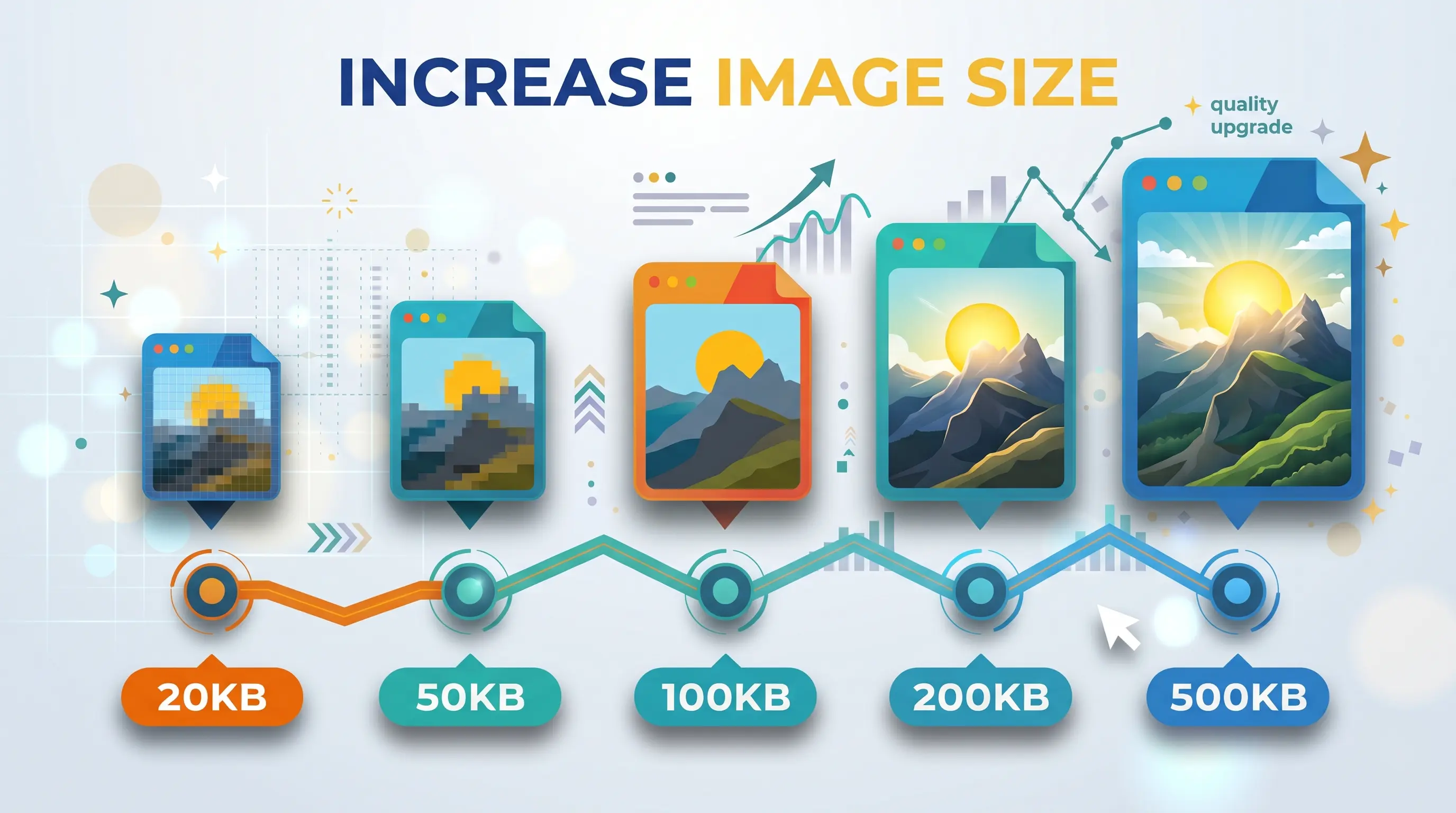
How to increase image size in KB (4 steps)
- Upload images. Upload your JPG, PNG or WEBP file using the drop zone at the top of this page.
- Select target size. Choose Target Size and pick a preset (50 KB, 100 KB, 200 KB and so on) or type your own value in KB or MB.
- Choose format. Keep the output format as JPG unless your portal says otherwise.
- Enlarge and download. Click Enlarge All Images, check the new size in the file list, then download the result or a ZIP.
The two meanings of "image size": dimensions vs. file weight
Pixel dimensions (width × height) decide how sharp an image looks at a given display or print size. A small web image can look fine on a phone yet turn into a blurry mosaic on an A4 print. Professional printing usually targets 300 DPI, so an 8×10 inch photo needs about 2400×3000 pixels.
File weight (KB or MB) is the storage size. Portals for exams, jobs, visas and government services often set a minimum as well as a maximum, for example "between 200 KB and 500 KB". A phone photo that was heavily compressed to 85 KB can be sharp and still get rejected.
| Term | What it measures | When it matters |
|---|---|---|
| Pixels (px) | Width × height of the image | Screen sharpness, print size |
| File size (KB/MB) | Storage weight of the file | Upload limits on portals and forms |
| DPI | Pixels printed per inch | Print quality (300 DPI is the usual goal) |
Pro tip for best results: For portals with a minimum KB requirement, export as JPG at 100% quality (the most widely accepted format) or PNG if the portal allows it. Both avoid extra compression artifacts while the file weight grows.
Typical upload requirements (examples)
Every portal sets its own rules, so always follow the instructions on the form you are filling in, and check the official notice for the current exam cycle because limits change. These ranges are common examples for various state services and exams:
| Use case | Common range | Suggested preset |
|---|---|---|
| UPSC / SSC Signature Scan | 10–20 KB | 20 KB |
| Passport / Visa Photo | 50–100 KB | 50 KB or 100 KB |
| PAN Card / Aadhaar Document Scan | 200 KB–500 KB | 200 KB or 500 KB |
How browsers create new pixels
No tool can recover detail that the camera never captured. Upscaling works by interpolation: the software looks at neighboring pixels and estimates the colors of the new ones in between.
- Nearest neighbor copies the closest pixel. It is fast but leaves blocky, jagged edges.
- Bilinear and bicubic-style smoothing blends a wider group of neighbors for smoother gradients.
This tool uses your browser's built-in high-quality canvas resampling. The exact algorithm depends on the browser, but the result is smooth, continuous enlargement.
Why the format matters
JPEG is lossy: it discards data to save space, so stretching an already compressed JPEG can magnify its artifacts. PNG is lossless and keeps every pixel, which produces cleaner and heavier files. However, many portals accept only JPG, so use JPG at 100% quality when the form demands it.
Padding vs. real upscaling: which one do you need?
Upscaling adds real pixels, which helps when a picture looks small on screen or in print. Metadata padding only adds invisible bytes so the file passes a minimum-size check; it does not change how the image looks. Target Size mode strictly uses metadata padding to safely hit the exact KB/MB without changing the visual dimensions. If a portal also checks pixel dimensions, use Scale or Custom Resolution so the width and height match the rule.
"File size too small" error: how to fix it
- Read the exact minimum on the form (for example 50 KB or 200 KB).
- Pick the matching preset in Target Size mode, or enter your own KB/MB value.
- Keep the output format as JPG unless the form says PNG is allowed.
- Download, then check the size shown in the file list before you upload.
If the form instead says the file is too large, you need the opposite tool: try compress JPEG to 30KB, compress to 50KB, compress to 200KB, compress to 300KB or compress to 500KB. You can also browse all PNGReducer tools.
Privacy first: everything stays on your device
Passports, signatures, tax IDs and family photos are sensitive. PNGReducer processes images locally with HTML5 Canvas, so your files are never uploaded to a server. You can verify this yourself: open your browser's developer tools, go to the Network tab, process an image, and confirm that no image data is sent. Read our Privacy Policy for details.
Popular Tools
More useful utilities to supercharge your workflow.